🚀Selecting and Launching a Robot
After successfully funding your balance, you can proceed to choose a trading robot. Bitronix offers 4 algorithmic strategies with different risk and return profiles, allowing you to select the option that aligns with your goals.
Available Strategies:
Robot
Leverage
Target Annualized Volatility
Description
JUGG
1x
25%
Conservative strategy for steady growth with minimal drawdown
LINX
3x
75%
Balanced strategy with the optimal risk-reward ratio
VORTEX
5x
125%
Aggressive strategy for maximum capital efficiency
SPARK
10x
250%
Extreme strategy for experienced investors ready for high volatility
More information about the robots can be found here.
🚀Step-by-step Guide:
1. Go to the robot selection screen
On the application's main screen, tap the "Home" tab.
The available trading robots with a brief description of each will be displayed.
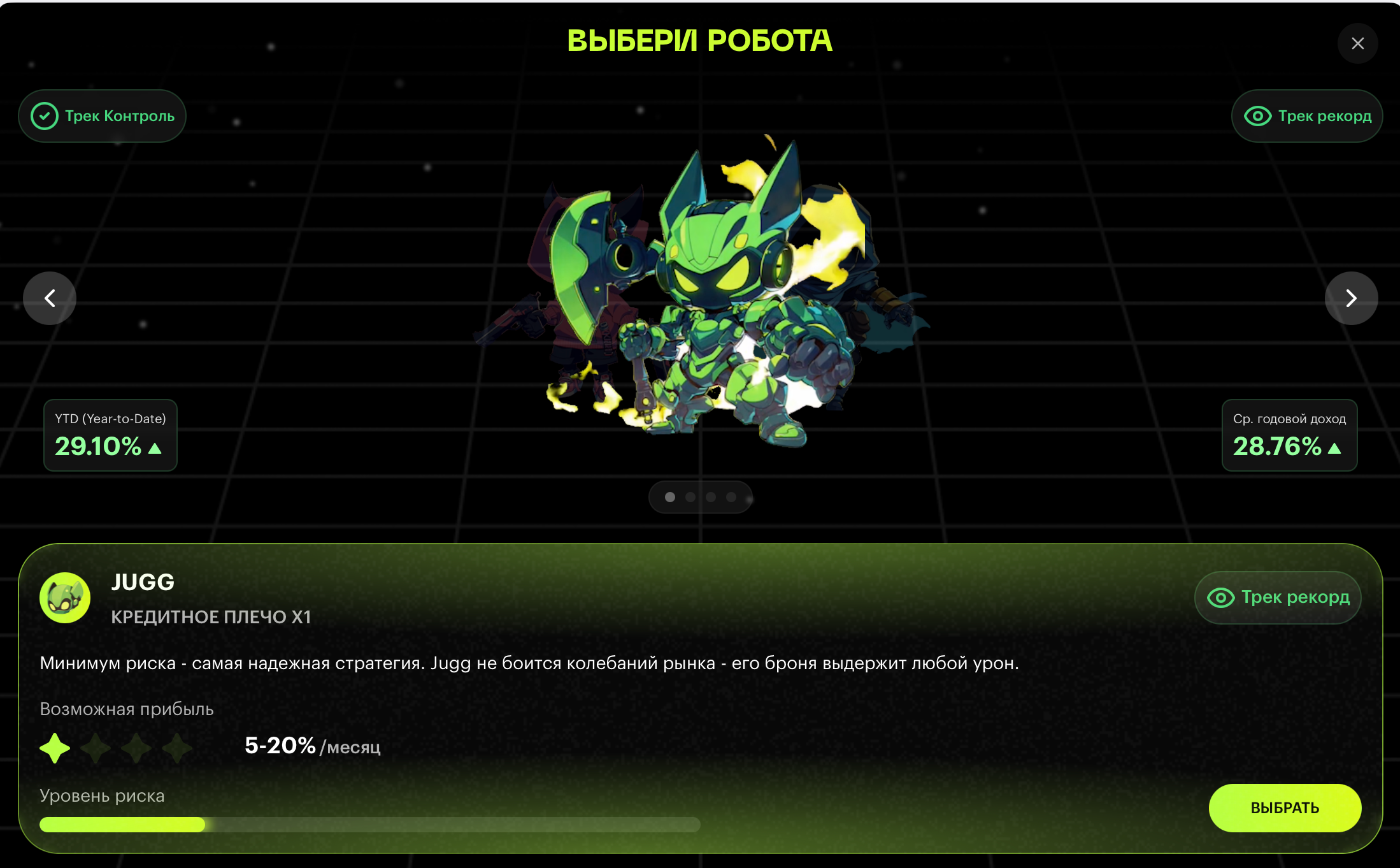
2. Choose a strategy
Review the characteristics of each robot: leverage, risk level, potential profit.
Tap the "Select" button under the robot you prefer.
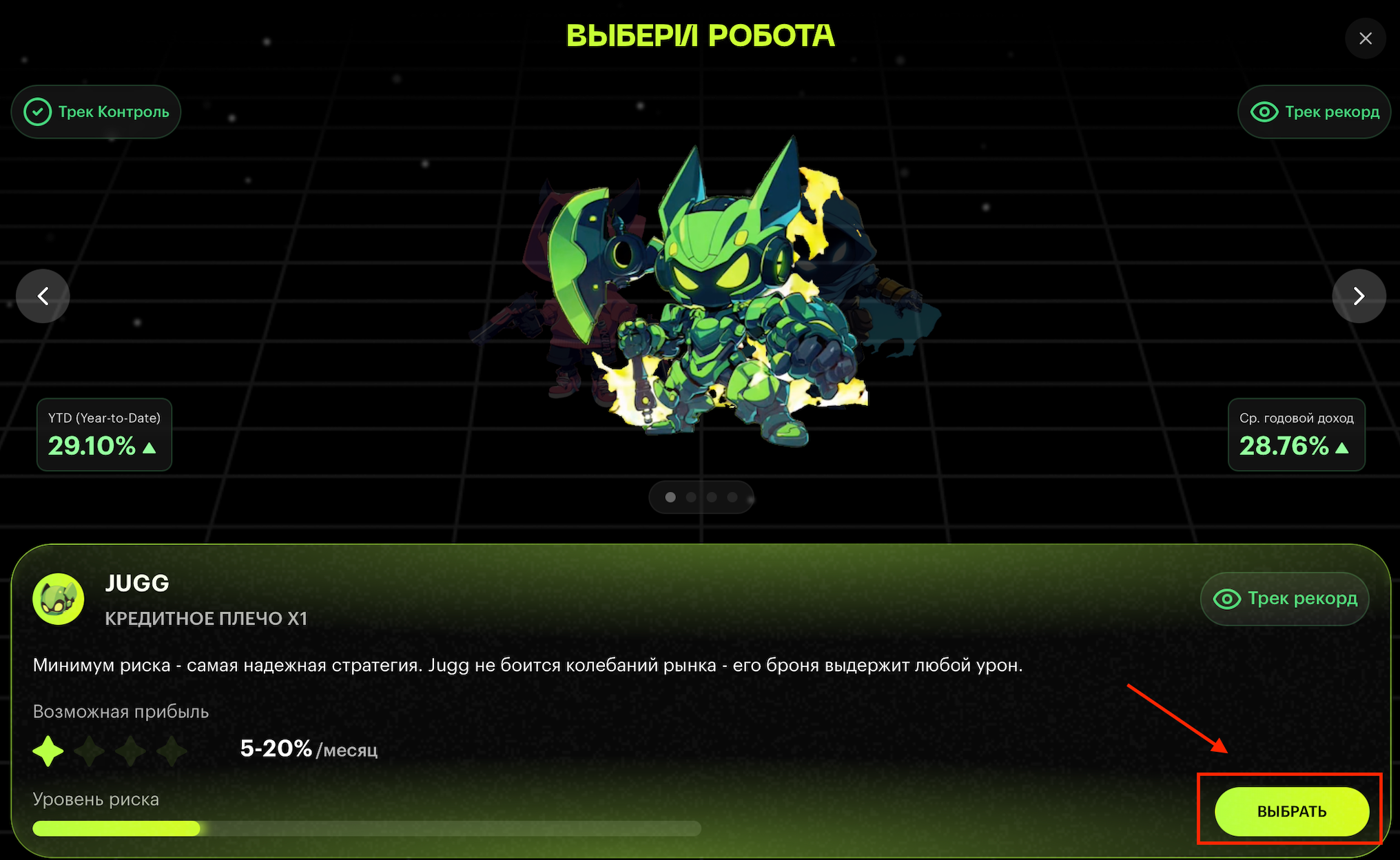
3. Set the amount
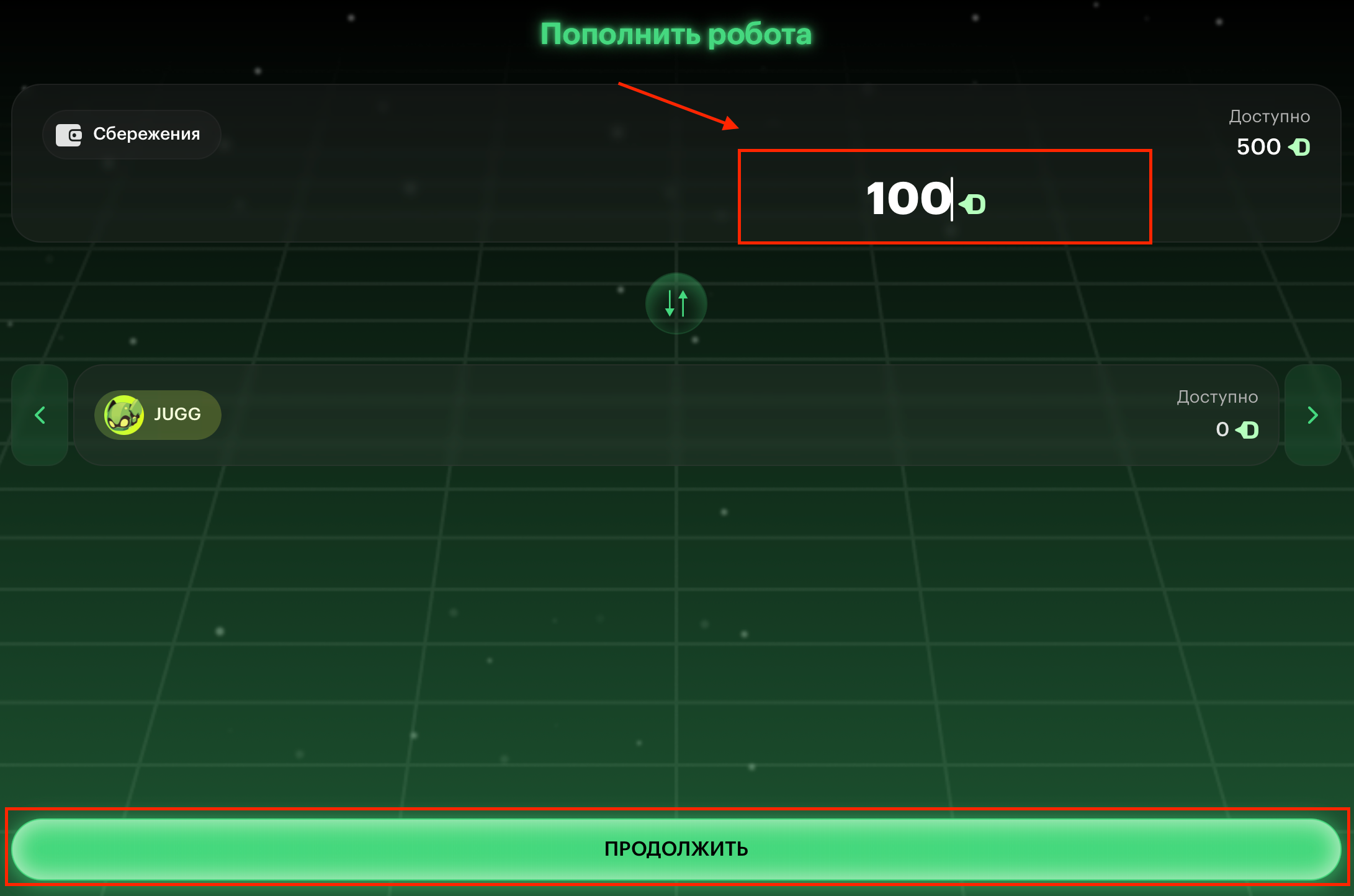
On the opened "Fund Robot" screen, specify the amount you want to allocate for trading.
The amount is deducted from the "Savings" section.
The minimum amount to launch a robot is 10 USDT.
Tap "Continue".
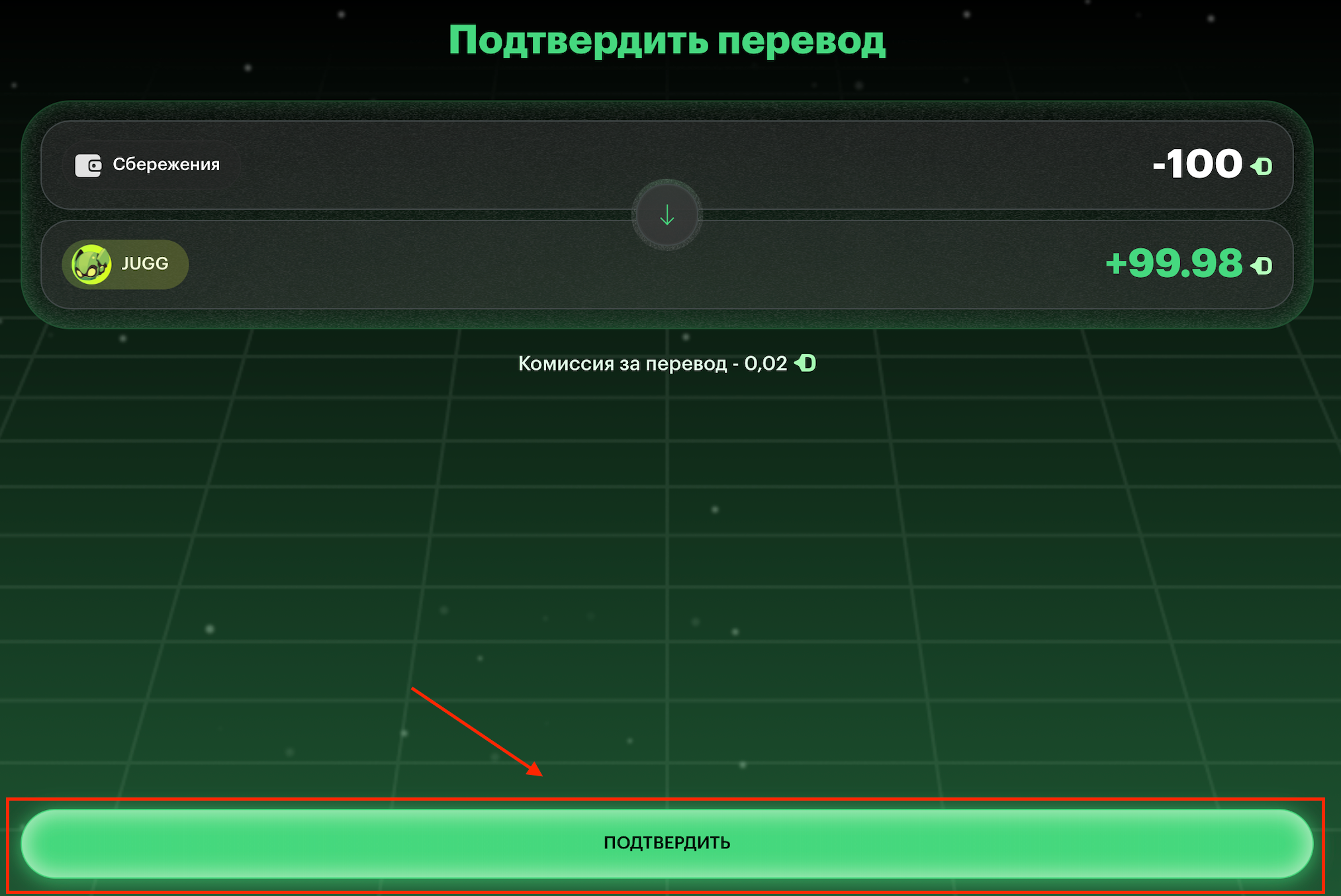
4. Confirm the transfer
The system will show the transfer details: deduction from "Savings", crediting to the robot's account, and the fee (0.02 USDT).
Tap the "CONFIRM" button.
Important: After confirmation, the funds will start working immediately.
5. Launch trading
After confirmation, the robot is automatically activated and begins trading according to its algorithmic strategy.
You can monitor the results in real time on the main screen.
Launching Multiple Robots
You can use several strategies simultaneously:
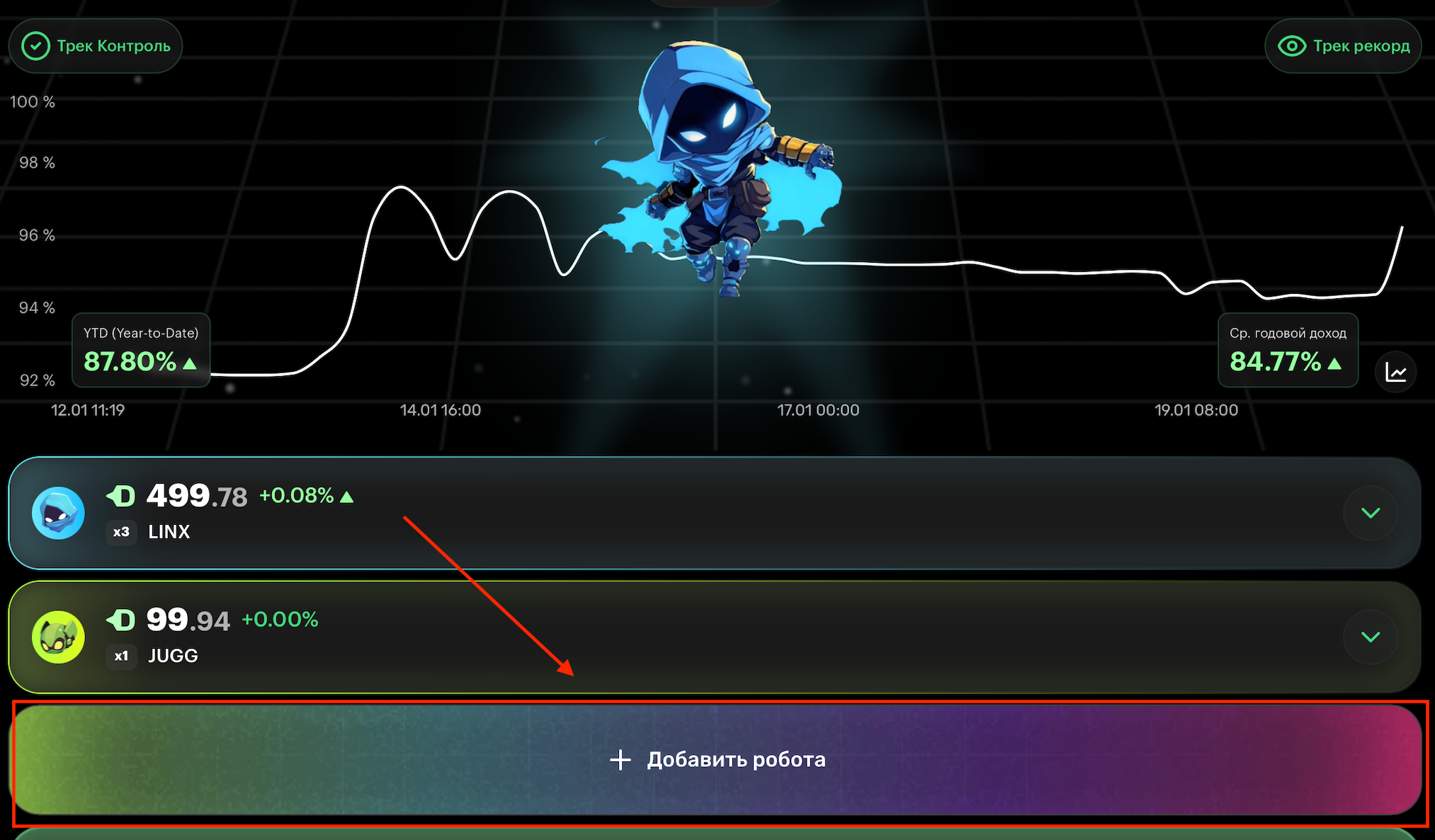
On the main screen, tap "Add Robot" or simply repeat steps 2–5 for another robot.
Each robot operates independently, managing the amount allocated to it.
You can distribute capital among different strategies for diversification.
What Happens After Launch?
✅ Automatic Trading — The robot independently analyzes the market and executes trades.
✅ 24/7 Monitoring — The algorithm works around the clock without your involvement.
✅ Risk Management — The built-in control system limits losses according to the strategy's parameters.
✅ Transparency — All results and statistics are available in the application.
🔐 Manual Risk Control: Take Profit and Stop Loss
In addition to the built-in algorithmic risk management system, you gain direct control through the ability to set Take Profit (TP) and Stop Loss (SL) for each active robot.
The Essence of the Function:
You set a target profit percentage and a maximum allowable loss percentage. Upon reaching either of these thresholds, the robot's trading automatically stops, and all funds are instantly withdrawn from its account back to your "Savings" section.
Current Default Settings:
Take Profit (TP): +20%
Stop Loss (SL): -20%
An Important Nuance of the Stop Loss: The system tracks the robot's actual balance, not its intraday (instantaneous) drawdown.
A Clear Example:
You set a Stop Loss at -10%.
During trading, due to a sharp market move, the robot's balance may briefly reach -20%.
The trigger will occur based on the actual level reached (-20%), and funds will be withdrawn with that result (-20%), not at -10%.
Why is it designed this way?
This protects against false triggers during high volatility but requires user understanding: setting a narrow SL does not guarantee withdrawal exactly at that level — the final result will correspond to the actual balance at the moment the threshold is breached.
❓Why Take Profit and Stop Loss may execute at a different price
Take Profit and Stop Loss trigger when the set level is reached, but the actual order execution may differ from the specified value.
This is due to market volatility and transaction processing time.
How it works:
You set a Take Profit or Stop Loss level.
When the market reaches this level, the order is activated.
The transaction is then sent and executed.
During this time, the market price may change.
The order is executed at the actual market price at the moment of fulfillment.
As a result, the order may be executed:
Above the specified Take Profit in a rapidly rising market,
Below the specified Stop Loss in a sharply falling market.
📌 Important: This is standard market practice common to all trading systems operating in high-volatility crypto market conditions.
Important Notes:
🔸 Funds on the robot — Money allocated to a robot is not available for withdrawal until it is stopped. 🔸 Changing the amount — You can add or partially withdraw funds from a robot at any time via the strategy settings. 🔸 Stopping the robot — You can stop a robot at any moment, after which the funds will return to the "Savings" section.
Ready to take personal control of your risk? 🔜 Launch a robot and configure your Take Profit and Stop Loss levels: @BitronixAppBot.
Last updated